

Getting your student certificate on E-Government is simple and can be completed in a few steps. We have prepared all the details for E-Government student certificate lookup and how to download or print a barcoded student certificate from e-Government.
We have previously shared many topics related to students and student services:
- How students can access healthcare and eligibility requirements
- Unconditional district governor scholarships for students
In this article we explain everything about student certificate lookup. Let’s review how to obtain a student certificate step by step.
How to Search for a Student Certificate on E-Government
Follow these steps for E-Government student certificate lookup:
- Log in to the E-Government portal with your credentials.
- In the search box type “Student Certificate Lookup”.
- From the results select “Ministry of National Education / Student Certificate Inquiry”.
- Check the box for “I have read and accept the information above.” to give consent.
- Finally click the “Search” button.
This will display your student certificate through the E-Government student certificate lookup service.
E-Government Student Certificate Lookup (Step-by-Step with Images)
The steps for E-Government student certificate lookup are as follows:
STEP 1: Go to turkiye.gov.tr and sign in to your account.
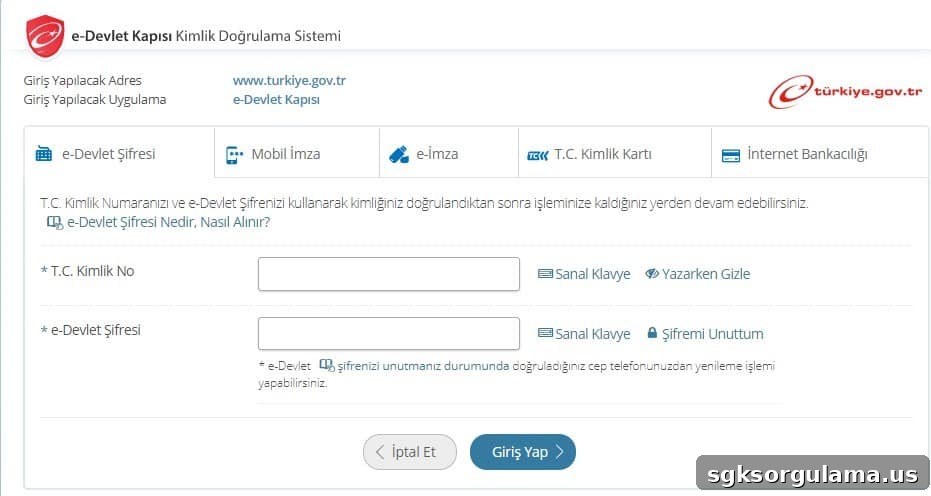
STEP 2: In the main page search box enter “Student Certificate Lookup” and search.

STEP 3: From the listed options click the one titled “Ministry of National Education / Student Certificate Inquiry”.

STEP 4: On the next screen check the consent box that says “I have read and accept the information above.”.
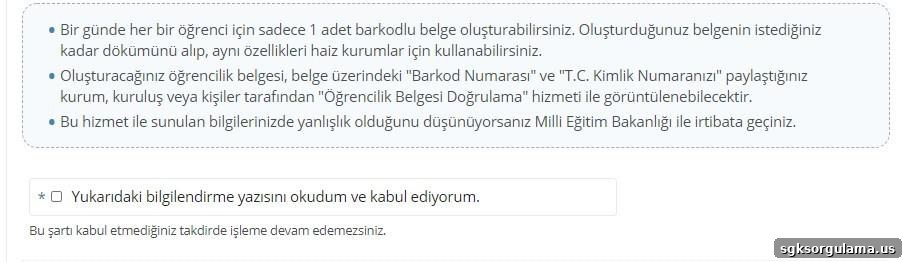
STEP 5: Click the “Search” button to view your student certificate.

By following these steps you complete the process to obtain your student certificate online.
How to Download or Print an E-Government Student Certificate
To download or print your E-Government student certificate follow these steps:
- Click the “Barcoded Document” button located to the right of the certificate.
- Click the printer icon in the top right corner of the document window.
- Make sure a printer is connected to your computer, then click “Print” to obtain a physical copy.
These steps will give you a barcoded student certificate from E-Government that is valid for official procedures.
E-Government Student Certificate: Step-by-Step Download (with Images)
Below are illustrated steps to download and print your E-Government student certificate. Follow them to save or print the document.
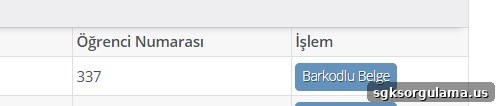
STEP 1: On the student certificate page you will see the document name. Click the “Barcoded Document” button to the right of the name.
STEP 2: In the window where the document appears click the printer icon in the top right corner.
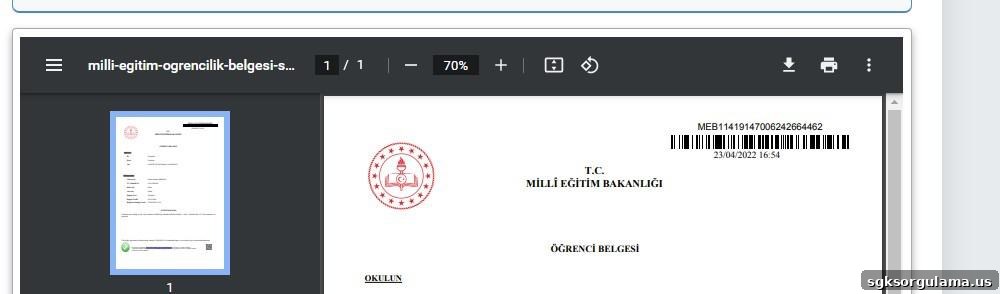
STEP 3: Finally, click the “Print” button to get a hard copy of the document.
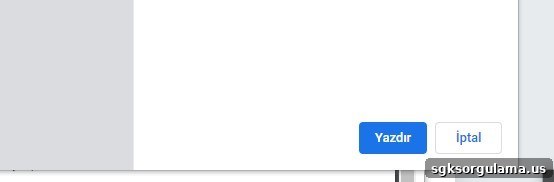
With these steps you complete the E-Government student certificate download process.
Can a Parent Download a Student Certificate?
Yes. A parent or guardian can obtain a student certificate using their own E-Government login. After signing in, the parent can access the student certificate inquiry page and view information for their dependent students.
Follow the same steps described above to download or print the certificate for the student you are authorized to manage.
How to Verify an E-Government Student Certificate
To verify a student certificate on E-Government, do the following:
- On turkiye.gov.tr type “student certificate verification” in the main search box.
- Select “Ministry of National Education / High School Graduation Certificate Verification” from the results.
- Enter the certificate barcode number requested.
- Click the “Continue” button to complete verification.
This process verifies the document using its barcode number.
Student Certificate Verification (Step-by-Step with Images)
Follow these illustrated steps to verify an E-Government student certificate:
STEP 1: Sign in to E-Government and type “student certificate verification” in the search box on the main page.

STEP 2: From the listed options choose “Ministry of National Education / High School Graduation Certificate Verification”.

STEP 3: Enter the barcode number shown on the document accurately.
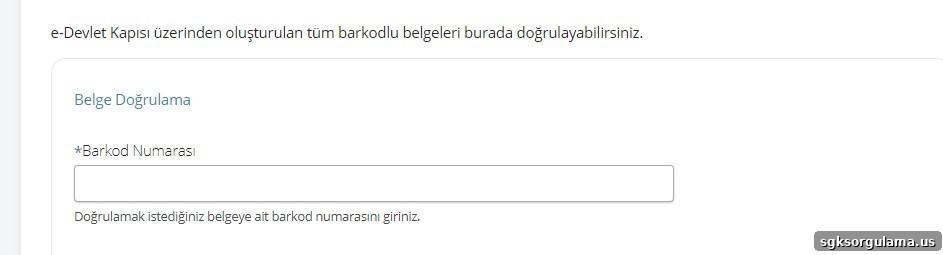
STEP 4: Click the “Continue” button and complete the verification.

After completing these steps the certificate will be verified.
We will continue to share information about official processes, documents, and support for students. You may also find these related topics useful:
- How much school student aid is and application requirements
- How students can receive orphan’s pension and eligibility criteria
We have provided complete information about E-Government student diploma inquiry and related services. Follow us for more updates on official procedures, documents, and assistance for students.