
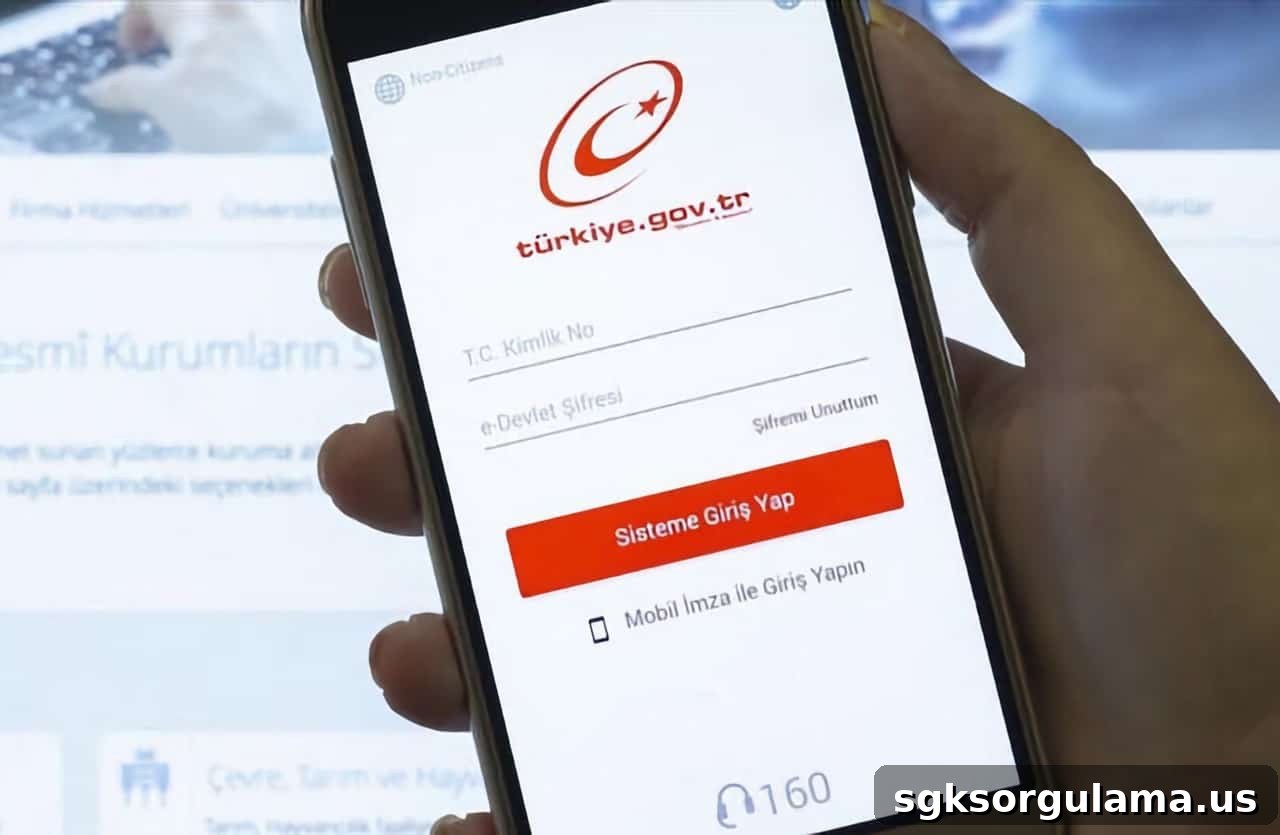
Changing and renewing your e-Government (e-Devlet) password should be done periodically. E-Devlet is the system where Republic of Turkey citizens manage their interactions with public institutions. You can access the system at turkiye.gov.tr or via the mobile application.
E-Devlet is used for applications to institutions, document checks, booking appointments and similar transactions. Users receive a password to perform these actions, which can be obtained from PTT branches in a sealed envelope. For those without a password, alternative login methods such as e-signature and mobile signature are also available.
Changing or renewing your e-Government password helps protect you against fraud. The e-Government system may prompt you every six months to update your password. If you prefer to keep your current password, updating is not mandatory unless you suspect a security issue.
You should change your password in the following situations:
- If you believe someone else has gained access to your password
- If your password is made of easily guessed numbers or letters
- If you have forgotten your password
Even if none of the above apply, it is good practice to update your password periodically for security. If you do not yet have a password, visit a PTT branch to receive one in a sealed envelope.
With an e-Government password you can perform many transactions without visiting institutions in person. Booking appointments and using online services simplifies procedures that would otherwise require physical visits.
How to Change Your E-Devlet Password?
Changing your e-Government password is straightforward. First, go to turkiye.gov.tr and click the “Giriş Yap” (Sign In) button at the top right of the page.
If you remember your password, log in using your Turkish ID number and password. You can use the on-screen virtual keyboard during login and enable the hide-while-typing option for added privacy.
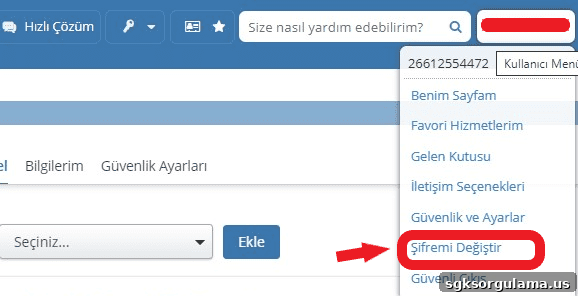
After logging in, a box with your name appears on the right side of the screen. Click that box to see several options and choose “Şifremi Değiştir” (Change My Password). The password change screen will appear as shown below.
On the password change screen you will see several guidelines. The first requires a password of at least eight characters. You may use a longer password for greater security.
The second guideline states you cannot use a password composed solely of numbers or solely of letters. This rule exists to increase your security: numeric-only passwords are easier to guess, while a mix of letters and numbers is harder to compromise.
A common mistake is using easily linked information like your birth year or ID number as a password. Such choices are vulnerable to being discovered by others, so avoid using birth dates, team founding years, or similar predictable numbers.
You cannot reuse your previous e-Government password in the exact same form. New passwords must differ from old ones and may include uppercase and lowercase letters, punctuation, and special characters such as %, parentheses, and others.
To change or renew your e-Government password, first enter your current password, then type the new password twice in the provided fields and click the “Değiştir” (Change) button.
I Forgot My E-Devlet Password — What Should I Do?
If you forget your e-Government password, you should reset it by following the site’s recovery options.
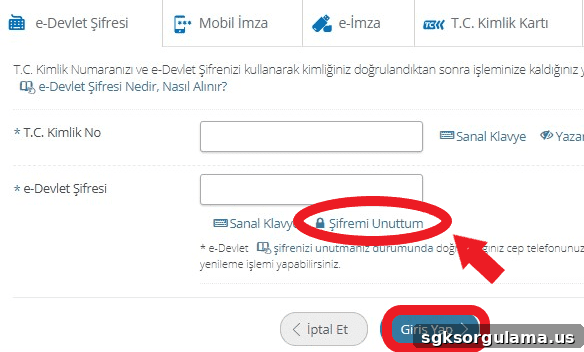
Go to turkiye.gov.tr, click “Giriş Yap,” and on the password screen select “Şifremi Unuttum” (I Forgot My Password).
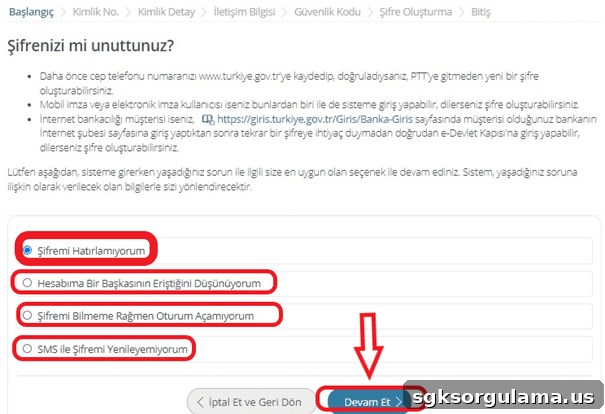
When you click “Şifremi Unuttum,” several options appear. The first, “Şifremi Hatırlamıyorum” (I Don’t Remember My Password), helps when you simply cannot recall your password.
Another option addresses situations where someone else may be using your account. Selecting this option helps you block unauthorized activity and should be used immediately if you suspect misuse.
If you know your password but cannot reset it, choose the appropriate option—this is often due to entering the password incorrectly; pay attention to uppercase and lowercase letters during entry.
The final option is “I cannot reset via SMS.” This usually applies if your mobile number is not registered in the system. In that case, try alternative recovery methods listed on the site.
If your mobile number is registered, password recovery via SMS sends a verification message to your phone. If you cannot use SMS, you can access the system with mobile or e-signature, or through internet banking, and then set a new password.
If none of these options are available, visit a PTT branch to request a new password. After receiving a new password, immediately create a strong, unique password and register your mobile number and email address in the system.
Change E-Devlet Password via SMS
You can change your e-Government password via SMS if your phone number is registered in the system. During the password change or recovery process, the system sends an SMS to your registered number with instructions or a verification code.
Beyond password changes, SMS verification helps protect your account by preventing unauthorized access. Adding contact information to your e-Government profile increases the security of your account.
To add or update contact information, click the box with your name and select “İletişim Bilgilerim” (My Contact Information). Use the Edit function to update details. The system will send a code to verify your phone—enter that code to complete phone registration.
Phone verification can also be completed with new Turkish ID cards using an NFC-enabled phone. In the mobile e-Government app, enter your ID details and tap your chip-enabled identity card to the device to verify. Ensure your device’s NFC function is enabled during this process.
You can also add your email address in the “İletişim Bilgilerim” section to receive notifications and updates.
Changing E-Devlet Password by Phone
You cannot change your e-Government password by calling a support line. Instead, use SMS-based recovery or the online options available through the website or mobile app. Password changes are designed to protect users and are best handled through secure, official channels.
Do not share your password with anyone, and try to avoid writing it down in obvious places. Use memorable but non-obvious notes if necessary. Enable two-factor authentication for added protection whenever possible.
The e-Government two-factor authentication sends a code to your phone during login in addition to your password, providing stronger security for your account.
Avoid using “remember my password” options on unfamiliar devices, and do not save passwords on public or shared computers. Even on personal devices, consider the risk of loss or theft before saving credentials.
By regularly changing and renewing your e-Government password, you maintain a safer account and make managing interactions with public institutions easier and more secure.