

You can check military service details through the e-Government (e-Devlet) website and mobile application. Using these services you can access many records related to your military obligation. When you reach the age for conscription, you will be enlisted unless you submit a deferment request. Service length varies according to your education level. If you prefer, you can request a deferment to postpone your service to a later date. With e-Devlet military inquiries you can also check the status of any deferment requests.
For those who do not wish to perform compulsory service, paid exemption (bedelli) options are sometimes provided. By paying the specified fee, you may be exempt from active service. You can also view historical military records, which is useful when you need a detailed statement showing where and when you served.
How to Check Military Service Location on e-Government?
Finding your military assignment on e-Government is organized through four different pages. Separate sections exist for privates (er), reserve officers, paid exemption (bedelli) applicants, and reserve non-commissioned officers (yedek astsubay).
The e-Government sections used to check assignment locations are:
- Private Classification Result Inquiry and Dispatch Application
- Reserve Non-Commissioned Officer Classification Result Inquiry and Dispatch Application
- Reserve Officer Classification Result Inquiry and Dispatch Application
- Paid Exemption (Bedelli) Classification Result Inquiry
How to Check Assignment Location for Privates?
For privates, use the Ministry of National Defense (MSB) section titled “Private Classification Result Inquiry and Dispatch Application”. To access it, follow the “Private Classification Result Inquiry” link and begin the inquiry.
On the accessed page you must initiate identity verification by clicking the “Verify My Identity Now” button as shown. This starts the authentication process required to view your assignment.
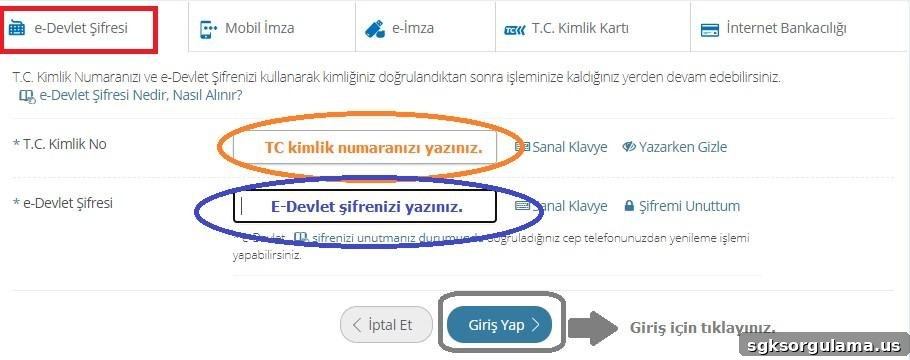
On the identity verification page that opens, choose the login method that suits you to complete e-Government authentication. In the example below, the e-Government password option is highlighted to illustrate how to proceed.
Click the highlighted “e-Government Password” option, enter your “Turkish ID number (TC)” and “e-Government password”, then press the “Log In” button.
After completing the identity verification shown above, you will reach the screen where the private assignment location is displayed. The example below shows the typical result screen you will encounter.
How to Check Assignment Location for Reserve Non-Commissioned Officers?
Reserve non-commissioned officers should use the “Reserve Non-Commissioned Officer Classification Result Inquiry” link that leads to the “Reserve Non-Commissioned Officer Classification Result Inquiry and Dispatch Application” page.
On the resulting page, complete identity verification as described above to finalize the inquiry.
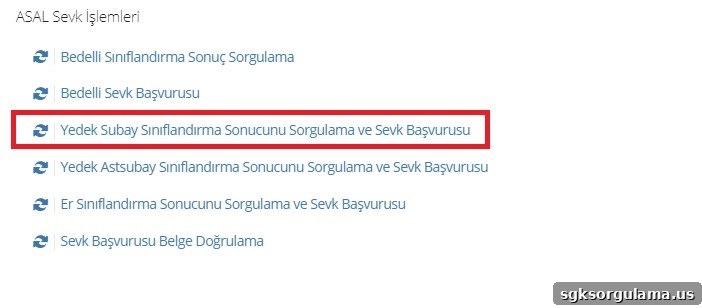
If you prefer to use the MSB section on e-Government, go to the “ASAL Dispatch Procedures” menu and select the highlighted option shown below to complete your inquiry.
How to Check Assignment Location for Reserve Officers?
Reserve officers can access the “Reserve Officer Classification Result Inquiry” link to reach the appropriate page. You must authenticate with your “TC Identity Number” and “e-Government Password” to complete the inquiry.
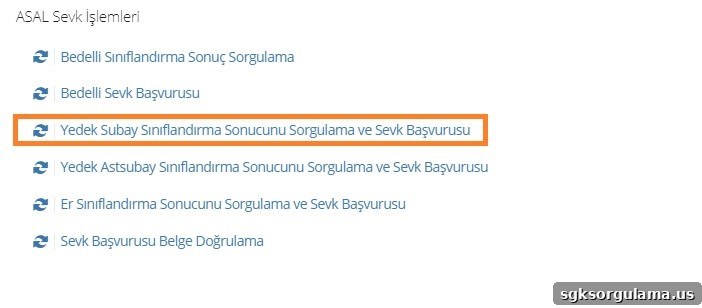
If you navigate via the MSB page directly, use the “Reserve Officer Classification Result Inquiry and Dispatch Application” section marked in the orange frame to proceed.
How to Check Paid Exemption (Bedelli) Assignment Location?
To find a paid exemption assignment location, go to the e-Government page for “Paid Exemption (Bedelli) Classification Result Inquiry”. After logging in via the link, complete identity verification to view the result.
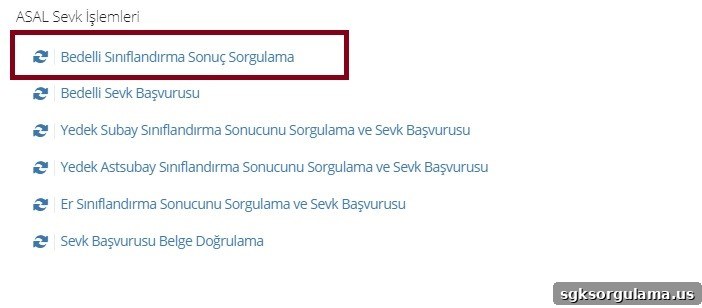
Within the MSB section, use the “Paid Exemption Classification Result Inquiry” tab highlighted in the brown frame on the service page to complete the e-Government assignment query for bedelli service.
How to Apply for Military Muster (Yoklama) via e-Government?
To apply for military muster through e-Government, access the “Muster Application” link. After clicking the link, authenticate your identity and enter the relevant application page.
Alternatively, you can follow these steps to submit the muster application without using a direct link:
- Log in to the e-Government portal.
- Complete identity verification and click the “Public Institutions” menu.
- Open the “Ministry of National Defense” page.
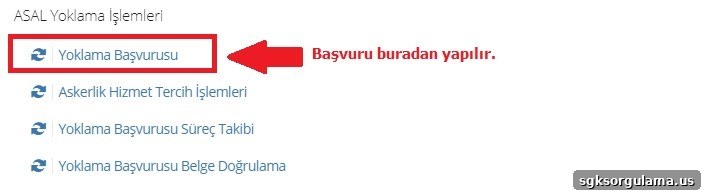
- Under the “ASAL Muster Procedures” menu, select the “Muster Application” tab shown below.
How to View the Muster Document?
The muster document inquiry is located under the “Muster Application Process Tracking” menu shown earlier. You can use the direct “Muster Application Process Tracking” link to reach this section.
If you have not submitted the muster application, you will not be able to view the muster document. The page displays an error or a notice when the application has not been completed—an example of that screen is shown below.
Those who encounter the result shown in the example should first complete the muster application as explained above, then return to track the process in the process-tracking section.
How to Obtain the Military Status Document?
You can view and generate an official military status document via the MSB section on e-Government. Use the “Military Status Document Inquiry” link, log in, and complete identity verification to proceed with the request.
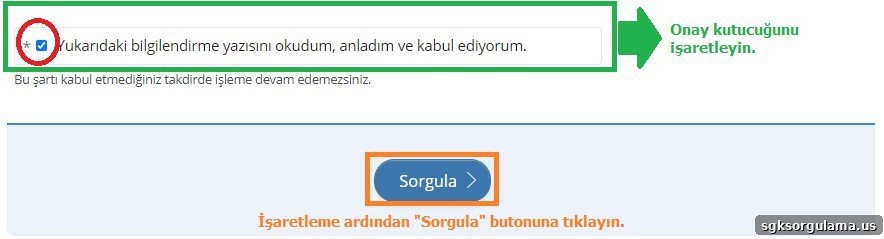
To create a barcode-valid document, read and accept the confirmation text on the page. Check the confirmation box as shown below and click the “Inquiry” button to generate the document.
After completing the inquiry as described, you can obtain a military status document that is valid for 15 days. An example of the barcode-bearing document is shown below. You may print this document for any institution requesting proof of your military status.
How to Apply for Military Deferment?
Military deferment applications via e-Government require your Turkish ID number and e-Government password. Use the MSB section titled “Military Deferment Application” to submit a deferment request.
You can access this section directly through the MSB link. Deferment requests are processed in accordance with the relevant provisions of the Military Service Law.
Completing a deferment application involves three main steps:
- Information and Confirmation
- Education Details
- Application Result
How to Cancel a Military Deferment Application?
You can cancel a deferment application through e-Government. Use the “MSB ASAL Deferment Cancellation Application” link to submit your cancellation request.
To reach the cancellation page manually, open the Ministry services on e-Government and select the “Military Deferment Cancellation Application” tab as shown. Provide the requested information and submit to complete the cancellation.
How to Obtain the “Sülüs” Document on e-Government?
To obtain the sülüs document (the deployment notice), follow the military assignment inquiry steps described above. Everyone assigned as private, paid-exemption personnel, reserve non-commissioned officer, or reserve officer can obtain their sülüs document through e-Government during their dispatch period.
You must request the sülüs document during the designated dispatch period. For detailed information about dispatch periods, consult the official ASAL service information provided by the Ministry of National Defense.
How Soon After Receiving the Sülüs Document Must I Report for Service?
There is no strict universal deadline tied to the sülüs document itself for reporting to the unit; however, you cannot enter the barracks without the dispatch notice. Typically you are allowed to obtain the dispatch document up to three to four days before the date you are expected to report.
What Are the Dispatch Start and End Dates?
Dispatch dates and their meanings should be understood correctly. The dispatch start date indicates when you may begin reporting to your unit to fulfill your military service. That date marks the beginning of the permitted reporting period. The dispatch end date is the final day by which you must present yourself at the barracks. You must report no later than the dispatch end date. Detailed dispatch period information is available in the “Call and Dispatch Period” section shown on the private assignment result screen.
How Can I Find Out Where I Was Assigned?
To learn where you have been assigned, follow the inquiry steps described above. You may be assigned to many different barracks across the country. Assignments and roles are determined by various criteria. Common service branches include:
- Infantry
- Cavalry
- Tank units
- Artillery
- Air defense
- Army aviation
- Engineering (İstihkam)
- Communications (Muhabere)
- Intelligence
Which branch you are placed in depends on physical qualifications, education, and other criteria.