
The E-Government online services, accessible via the internet and available on Android devices, have simplified many daily processes. The platform hosts a range of public services and provides access to official documents issued by government offices. This eliminates the need to visit institutions in person to obtain paperwork. After completing the E-Government application procedures, you can easily sign in to the system.
How to Apply for E-Government
The E-Government system enables the electronic delivery of services the state provides to citizens. It allows individuals to access services from public institutions through information and communication technologies. As a result, citizens can reach services easily and efficiently and complete transactions quickly and securely. The platform is also known as the E-Government Gateway, which provides access to public services. Through the gateway, integrated electronic services are offered, payments can be processed, and shortcuts to institutions are provided. Services delivered by public institutions are transferred to the electronic environment accurately and up to date. You only need to verify your identity once—there is no need for a second identity verification. You can download the application described here from the links at the end of this article to use the Android E-Government app on your device, or obtain it from the Google Play Store. With the E-Government app you can use all available services. In this article, we explain how to apply to and use E-Government.
How to Use E-Government After Applying
Performing inquiries and transactions through the system is simple and fast. To use query services on the E-Government platform, you first need an E-Government password. You can obtain this password at PTT branches by presenting your ID; the fee is minimal.
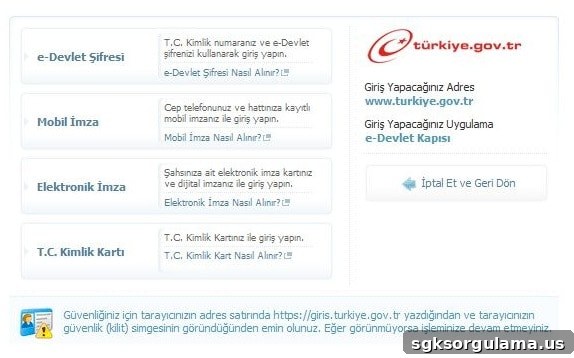
After receiving the password, you can begin the E-Government application steps. Additionally, make sure the E-Government app is installed from the Google Play Store or preinstalled on your device. To access services, you must verify your identity with a username and password, or with an email and password. Identity verification options include national ID number and password, electronic signature, mobile signature, internet banking, and the Republic of Turkey identity card. The platform also includes design features to support accessibility for people with disabilities, and ongoing work ensures compliance with usability and accessibility standards. All transactions you perform via E-Government are official; after completing a procedure you can print certificates in electronic form and use them at official institutions. Documents that include barcodes can be verified and tracked by public authorities. This is how application and query procedures are completed through the E-Government app. To begin using the system after applying, first sign in and complete identity verification. Once you finish the initial sign-in steps, you can start using the services. For first-time access, open the link provided at the end of this article. Click the “Sisteme Giriş” (Sign In) button on the right side of the screen. After the system opens, enter your Turkish ID number in the “T.C. Kimlik No” field and your password in the “e-Devlet Şifresi” field, then click “Sisteme Giriş Yap” to access the platform and complete transactions.
How to Obtain an E-Government Password
Many procedures can be completed easily through the E-Government platform. Offering services both online and via an Android-compatible app allows you to access them from home, on the way, on public transport, or at work—saving time and adding convenience. If you forget your E-Government password, there is no need to panic. If you chose the “I forgot my E-Government password” option, you can obtain a new password by visiting a PTT branch with your ID number, in the same way you received the initial password. Remember that once you obtain a new password, your previous password becomes invalid.
E-Government Application
To sign in to the E-Government gateway, use the official sign-in address provided by the government and follow the instructions on the sign-in page. Enter your national ID number and E-Government password or choose another verified login method to access services securely.
Install the E-Government App on a Compatible Device
If you prefer to use the mobile application, download and install the official E-Government app on your Android device from the Google Play Store to access services on the go and receive notifications, faster access, and a mobile-optimized interface.